Unlock the Secret: Turn Your Android into a Webcam
In a digital world where video calls have become an integral part of daily communication, the quality of webcams can often be underrated. Yet, the answer to improving it might already be in your pocket. Yes, your Android phone can take center stage as a high-definition webcam. It’s time to unravel this secret, a move that promises better video quality effortlessly and at no extra cost.
The Case for Your Android as a Webcam
Let’s face it—laptop webcams often leave much to be desired. Whether you’re using a Windows or a sleek MacBook Pro, even their latest models don’t boast more than 12MP cameras. This is where your Android phone shines. With advanced camera sensors, these devices are often miles ahead in terms of video clarity and quality. Why invest in a subpar webcam when you already have a superior camera?
But it’s not just about laptops. When it comes to desktop setups, purchasing an external webcam means adding another cost. If quality is paramount, your expenses could easily exceed $100. Instead, utilize the high-resolution camera that accompanies you everywhere, and enhance your calling experience without reaching for your wallet.
The Simple Setup
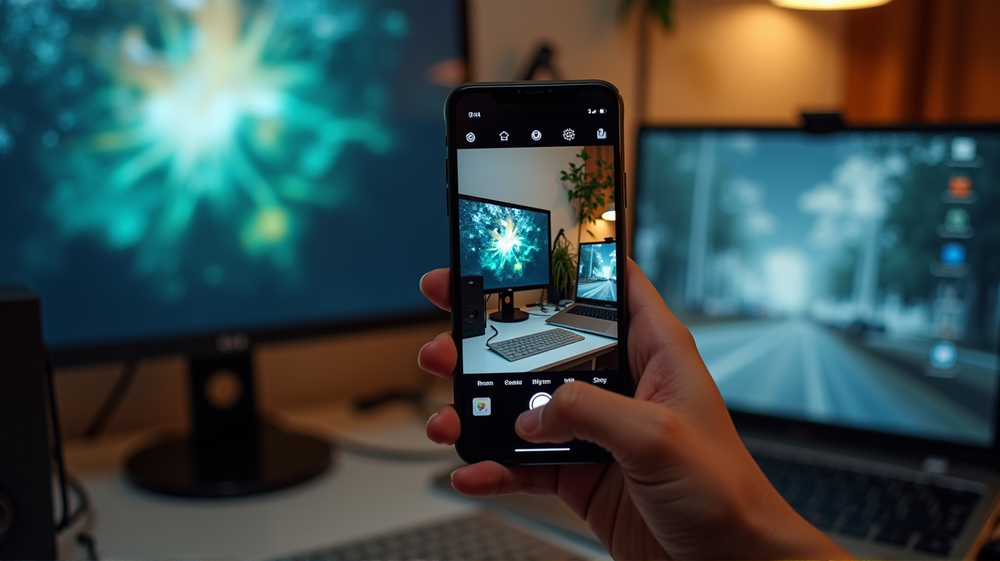
Turning your Android into a webcam is now a seamless experience, especially with advances in Android 14. Gone are the days of cumbersome third-party apps. Now, your phone can be recognized as a standard webcam simply by connecting it with a USB cable to your computer. Supported natively on Google Pixel and Motorola phones, this feature is a game-changer.
Here’s how you do it: connect your Android to your computer using a USB cable. Upon this, your device will offer an option to set the connection for ‘Webcam.’ Once selected, it appears in your video conferencing app, immediately improving your video call quality. Remember, you’re limited to the main camera, but options like adjusting the zoom or switching between front and rear cameras are at your disposal.
Tips for an Enhanced Experience
While the transition to an Android webcam is smooth, positioning your device correctly is crucial. Magnetic mounts are a subtle yet effective solution for devices with MagSafe compatibility. Alternatively, clamp mounts are equally practical. Just ensure your phone’s camera is focused on your face to capture the best angles.
Lighting is another key player in obtaining quality video. Most webcams, including those on phones, perform better with adequate lighting. Before investing in new equipment, consider adjusting your light source to see instant improvements in your video calls.
Beyond the Camera: Additional Features
Not only can your phone serve as a webcam, but it can also double as a high-quality microphone. This can be a vital upgrade for desktops without built-in mics or laptops whose audio options aren’t up to the mark. A straightforward connection transforms your phone into a wireless mic, elevating your audio clarity during meetings or recordings.
Embrace the versatility of your Android and see monumental improvements in your digital interactions. It’s time to move beyond traditional webcams and maximize the technology you own, offering a high-quality, effortless video experience daily. According to How-To Geek, this is a trend we can expect to see growing in the years to come.